How to play, and what every setting does
Two halves. The playing guide is about your hands — the gestures, the seven modes, what you should hear. The settings reference is the complete list: every setting, where it lives, and what it changes. The things that are not settings — the toolbar, the bar along the bottom, the panels your work lives in — have their own sections after it.
Play it — free, no download →Playing is free and needs no account. Pro adds cloud space for your recordings, MIDI out, and the full guided library — two of those pieces are free.
Playing
The gesture playbook — every hand shape, every degree, and what each one sounds like — is in the app itself, and on this page's gesture guide. Start there, then come back here when a control confuses you.
Your left hand — the chord bed
The left hand picks the chord. Nothing about it is a menu: the number of fingers you hold up chooses a scale degree, how high you hold the hand chooses how tense the chord is, and two small motions — a tilt and a flip — change the key and the chord library.
counting the chordT01
count a number on your fingers — that chord of the key sounds, for as long as you hold it
One finger is the tonic, two the second degree, and so on up to five. Index and little finger together reach the sixth, and adding the thumb reaches the seventh. The count IS the chord: it changes the moment your fingers do, and it keeps sounding while you hold the pose. The letters below are the key the app opens in (A major) — transposing moves all seven together, so the degree is what stays put.
- 1 finger
- A — degree I
- 2 fingers
- Bm — degree ii
- 3 fingers
- C#m — degree iii
- 4 fingers
- D — degree IV
- 5 fingers
- E — degree V
- index + little
- F#m — degree vi
- those two + thumb
- G#dim — degree vii°
- hold the pose
- the chord keeps sounding; it changes the moment your fingers do
a fist is silenceT01
close the hand — the bed goes quiet, and a chord already ringing rings out
The count runs all the way down to zero: close the hand and the bed stops. It is a mute and not a stop, so whatever is still ringing is allowed to finish — the difference between taking your hands off the strings and damping them. The chord name stays on screen with a fist beside it, because a silent instrument and a broken one look identical from where you are standing.
- open hand, some fingers
- the chord sounds for as long as you hold the shape
- fist
- the bed is muted. Muted, not released — a ringing chord is left to ring out
- no hands in view
- silence too, and the screen says so rather than leaving you guessing
a momentary liftT44
point the fingers at the floor — the band lifts a semitone, and comes back when you let go
Turn the whole hand over so the fingers point at the ground and the band lifts by a semitone for as long as you hold it: the last chorus trick, without going back to the toolbar and finding the key again. It moves the root, so every part moves with it — chords, bass, melody and drums — and it moves back the moment the hand comes up. The key itself is never changed.
- hand upright
- the key the toolbar says
- fingers down, held
- root + 1 semitone — an amber +1 appears beside the chord
- let go
- back to the key. Nothing is stored
height is spiceT02
hand higher — more notes stacked on the same count
Raise and lower the hand to move through the chord’s colours: TRIAD at the bottom is the plainest voicing, 13TH at the top the most open. It moves while the chord is still sounding, so lifting the hand thickens a chord you are already holding.
- TRIAD
- root, third and fifth. Nothing stacked on top
- 7TH
- the seventh added
- 9TH
- the seventh and the ninth
- 13TH
- seventh, ninth and thirteenth — the eleventh is left out on purpose
one palm, two banksT03
palm away — the same count reads the other bank of the matrix
Turn the palm away from the camera and the left hand reads a second set of chords. The palm is drawn as lines and the back as a fill because that is the difference in your own hand: a palm shows you its fingers, the back of it shows you nothing. On screen nothing about the hand changes — the letter beside the harmony strip appears instead, and only for the flipped bank. The two banks are independent, so you can keep your own voicings on one side and the automatic ones on the other. A second marker sits where you are already looking: an amber ↺ BANK B appears beside the chord name for as long as the palm is away. Both say the same thing; the strip letter is the quieter one.
- palm to camera
- bank A — the letter beside the strip stays empty
- palm away
- bank B — the letter appears
tilt is the modeT08
roll the wrist — major becomes minor without changing the count
Roll the wrist to swap major for minor while holding the same degree. It is a tilt and not a rotation of the hand: the fingers stay where they are, which is what makes it possible to change the mode mid-chord without the chord jumping.
- wrist level
- major
- rolled
- minor, on the same degree
Your right hand — expression, then the menu
Two jobs, in the order you meet them. First the right hand is the expressive one: where you hold it and how you turn it change how the music sounds, without changing a single note. Then, when you want a different instrument, the same hand opens the menu — a motion rather than a pose, because every shape it can make is already a note.
height is volumeT04
raise and lower the hand — that is the master level
The right hand’s height is the level of everything: the bed, the bass, the lead. It is read from the palm rather than the fingertips, and both ends of the range are placed so that the whole hand stays in the picture when you reach them — you should never have to choose between the loudest note and being able to see your own hand.
- palm high
- loud. Full level arrives while the whole hand is still in frame
- palm low
- quiet, down to nearly nothing — but never nothing
- hand out of frame
- silence. A hand the camera cannot see is not a quiet hand
roll is colourT04
roll the wrist — the sound opens and closes without a note changing
Rolling the wrist sweeps a filter across everything the right hand is not otherwise using. It is a roll and not a height, which is why the screen draws it as a dial: reading it as "up and down" would have you waving the wrong way for a sweep that is meant to be turned. On the arpeggiator it does a second job — the same roll shortens and lengthens the notes.
- rolled one way
- DARK — the filter closes over the sound: further away, muffled
- level
- the filter is out of the way; what you hear is the instrument
- rolled the other way
- BRIGHT — the filter opens: the same notes with more edge
grip, let go, gripT102
the two lines in the panel are what the screen prints, in its own words
Close the hand, open it, close it again — twice, like knocking. That is the whole summon, and it is a motion rather than a pose on purpose: every shape the right hand can make is already a note. Hold the first fist and the screen prints the first line, with a thin line counting down the two seconds you have to land the second grip; land it and the line changes to the second.
- grip
- close the hand and hold it a moment — the countdown starts
- open
- let go. Two grips only count if they are separated by an open hand
- grip again
- within two seconds, or the first one is forgotten
- spread four fingers
- the fan opens
the fan, and the two ways outT102
move the palm to choose · close the hand and hold to take it
Spread four fingers and the fan opens above your palm: seven instruments, with your current one filled in. Move the palm — not the wrist, because the cursor is the palm — until the one you want is filled, then close the hand and hold it for a moment to take it. To back out instead, close the hand and pull it towards you. Doing nothing costs you nothing: the fan withdraws on its own.
- move the palm
- the nearest instrument fills in — the cursor is the palm, not the wrist
- close and hold
- take it. That mode goes live
- close and pull back
- let it go. Nothing changes
- do nothing
- it withdraws on its own
Hand illustrations: Wikimedia Commons “Hand 1–5” by Sannita (CC BY-SA 3.0), “Hand 0 Alternativ” by MichaelFrey (CC BY-SA 3.0); OpenMoji black line set (CC BY-SA 4.0).
The seven modes — what each one is
One instrument, seven ways of playing it. The fan is how you switch; these are the modes themselves. Six of them still play the chord bed with the left hand — what changes is what the right hand does. Nothing below is new wording: it is the sentence the toolbar prints when you rest on a mode button.
In the appThe toolbar prints one of these under each mode button — hover to read it on screen.
- Gesture
- Two-hand chord mode — left hand picks harmony, right hand controls expression
- Theremin
- Theremin mode — right hand Y-axis = pitch, left hand Y-axis = volume
- Piano
- Mono Piano mode — finger count selects a single note interval
- Melody
- Melody mode — left hand plays the chord bed, right hand fingers each lead their own scale note
- Sampler
- Sampler mode — left hand plays the chord bed, right-hand fingers fire their sample slots
- Sculpt
- Sculpt mode — left hand plays the chord bed, right hand pinches a finger and rolls the wrist to shape the sound live
- FX
- FX mode — left hand plays the chord bed, right hand performs effects: index filter sweep, middle wash, ring stutter, pinky crush, fist clears all
The legend down the side is not decoration and it is not the same in two modes: it lists what the right hand’s fingers do HERE. An index-finger pinch is a filter sweep in FX and a GRIT control in Sculpt, and the legend is where that is written down while you play. It says R · SCULPT, R · FX, R · MELODY or R · SAMPLER at the top, so you can tell which list you are reading.
- Gesture
- L · HARM with the chord and its tier, and R · EXPR with volume and filter. How high you hold the LEFT hand picks the tier — the four names on its rail — and thumb out drops everything an octave.
- Theremin
- L · VOL with a level bar, and R · PITCH. The left hand is height = volume and the right is height = pitch, with nothing on the boards about fingers.
- Piano
- L · NOTE — the one note sounding right now — and R · height = volume. The left hand’s finger count picks the interval, so there is no chord here at all.
- Melody
- R · LANE, reading which of the five zones a finger is in, plus a note name on each fingertip. Thumb out drops the whole bed an octave.
- Sampler
- The finger legend, one row per finger, naming the slot that finger will fire — and the same octave-down row as Melody.
- Sculpt
- The finger legend: what each pinch shapes, plus hand openness, which needs no pinch. The Sound tab documents the same parameters as sliders; the legend is what maps them onto fingers.
- FX
- The finger legend: the four effects, one per finger, and fist to clear them all.
One gesture is worth calling out because it is silent: right thumb out drops the chord bed — and in Melody and Sampler every note with it — a full octave, for as long as you hold it. The screen answers with an amber 8vb beside the chord name. Sculpt and FX are the two modes it does not apply to.
Recipes — a setup in one tap
6 of these are presets you can tap on the play surface; the rest are two or three settings in two or three tabs, written out because no button does them. Each says when to reach for it, which is the part a button cannot.
Aeolian — the same hand, a darker scale
One tap — the Aeolian chip, on the play surface
Reach for it when a major-key idea feels too bright but you do not want to relearn the hand. Nothing about your movements changes: the same finger count picks the same degree, and the degree is now the natural minor one. Good for anything that sits under a vocal.
Sets: Mode → diatonicMinor · Locked mode → diatonicMinor
Minor mood — same hand, darker scale

Sky Lead — the lead jumps an octave
One tap — the Sky Lead chip, on the play surface
For a chorus or a drop, where the melody should sit above the chords instead of inside them. It moves the five melody zones up (thumb starts at the octave, pinky at the top of the ladder) and turns Follow Chord on, so the higher line still lands on the harmony.
Sets: Playing mode → melody · Melody Zones → thumb 7 · index 10 · middle 12 · ring 13 · pinky 14 · Follow Chord → on
Lead jumps an octave — thumb zone 7, follow-chord on

Flute Air — breathy, wide, unhurried
One tap — the Flute Air chip, on the play surface
The default melody sound is a clean sine; this is the opposite end — all five fingers on a flute voice with the zones spread back to their normal span. Reach for it for slow lines where the space between notes matters more than the notes.
Sets: Playing mode → melody · Pinch Voices → thumb flute · index flute · middle flute · ring flute · pinky flute · Melody Zones → thumb 0 · index 3 · middle 6 · ring 9 · pinky 12
Breathy lead — all fingers flute, wide open zones

Reed Edge — a bite on top of your own bass
One tap — the Reed Edge chip, on the play surface
When the tune needs to cut through a dense bed. It re-voices the lead to a reed and touches nothing else — deliberately: the groove and the bass are yours to switch, and a recipe that moved them would take the arrangement away from you.
Sets: Playing mode → melody · Pinch Voices → thumb reed · index reed · middle reed · ring reed · pinky reed
Edgy lead — reed bite over your own bass

Swing — shuffle the rhythm section
One tap — the Swing chip, on the play surface
The straight-eighths feel is the default because it fits most things; this is for the jazz and blues corner. It leans the swing and puts the bass on a 3-3-2 tresillo, which reads as a shuffle under a walking left hand.
Sets: Bass Pattern → tresillo · Swing → 0.35
Shuffle the rhythm section — swing 0.35, tresillo bass

Flow — a bass line that writes itself
One tap — the Flow chip, on the play surface
For playing with both hands free: the bass stops repeating a pattern and starts generating one, and the arpeggiator sweeps the chord. Reach for it when you want to hold a chord and listen rather than drive the band.
Sets: Bass Pattern → flow · Swing → 0.3 · Arpeggiator → on
Generative bass drift — flow pattern, arp up

Slow ballad — long chords, nothing ringing over them
By hand — 3 settings
For a song that needs air: the chord bed becomes a pad with a slow attack and a long tail, and the room is turned up. Hand-hold matters most here — a ballad is where you move your hands away from the camera, and without it the chord would cut instead of ringing out.
Chord Voice — pad (Settings → Sound)
Sculpt — Sound Shape (latched) — Envelope toward Pad, Reverb toward Hall (Settings → Sound)
Hold values when hands leave (1.8s) — on (Settings → Stage)
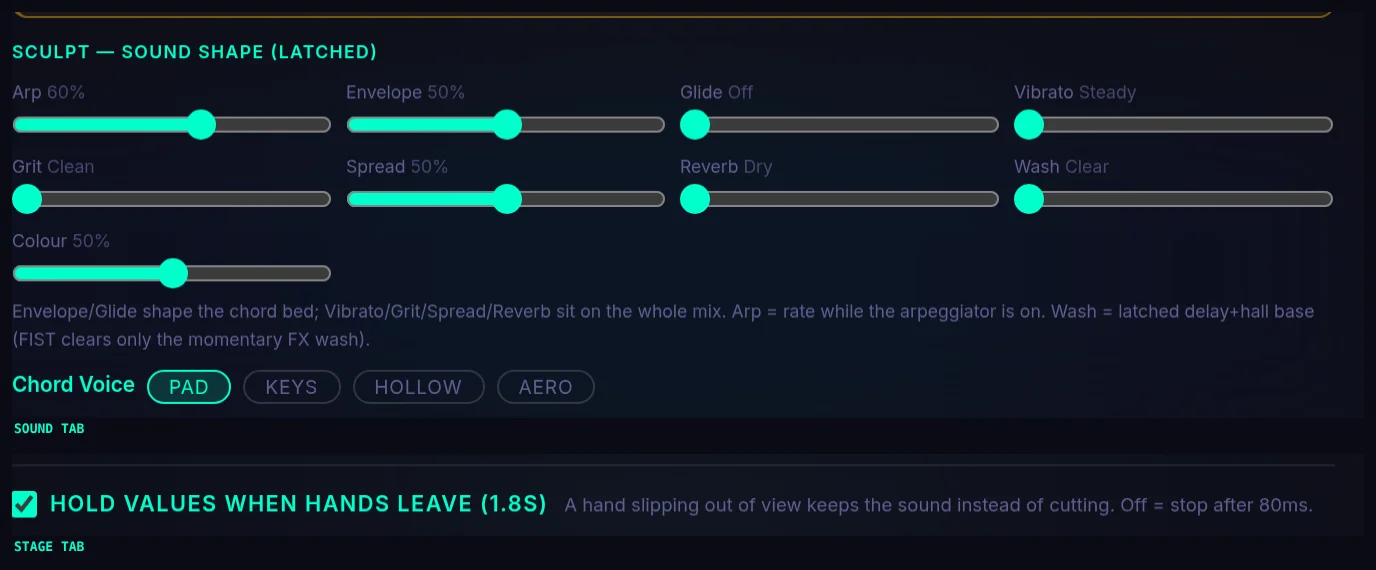
Ambient bed — a wash to play over
By hand — 3 settings
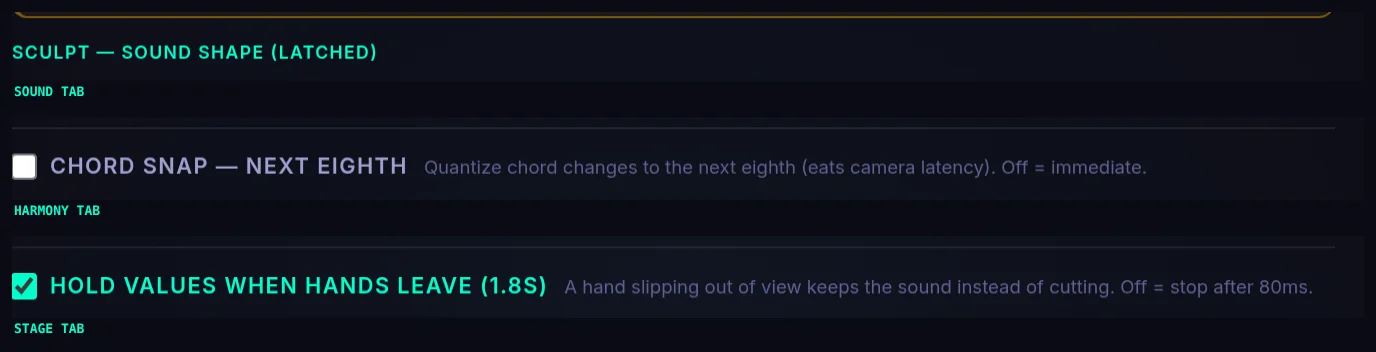
A chord held for a long time with the delay and hall latched, spread wide, and the chord changes snapped so they land on the beat rather than under your fingers. This is the setting for playing sparsely: a few chord changes and a lot of listening.
Sculpt — Sound Shape (latched) — Wash toward Wash, Spread toward Wide, Reverb toward Hall (Settings → Sound)
Chord Snap — next eighth — on (Settings → Harmony)
Hold values when hands leave (1.8s) — on (Settings → Stage)
A vertical clip for a phone — without your room in it
By hand — 3 settings
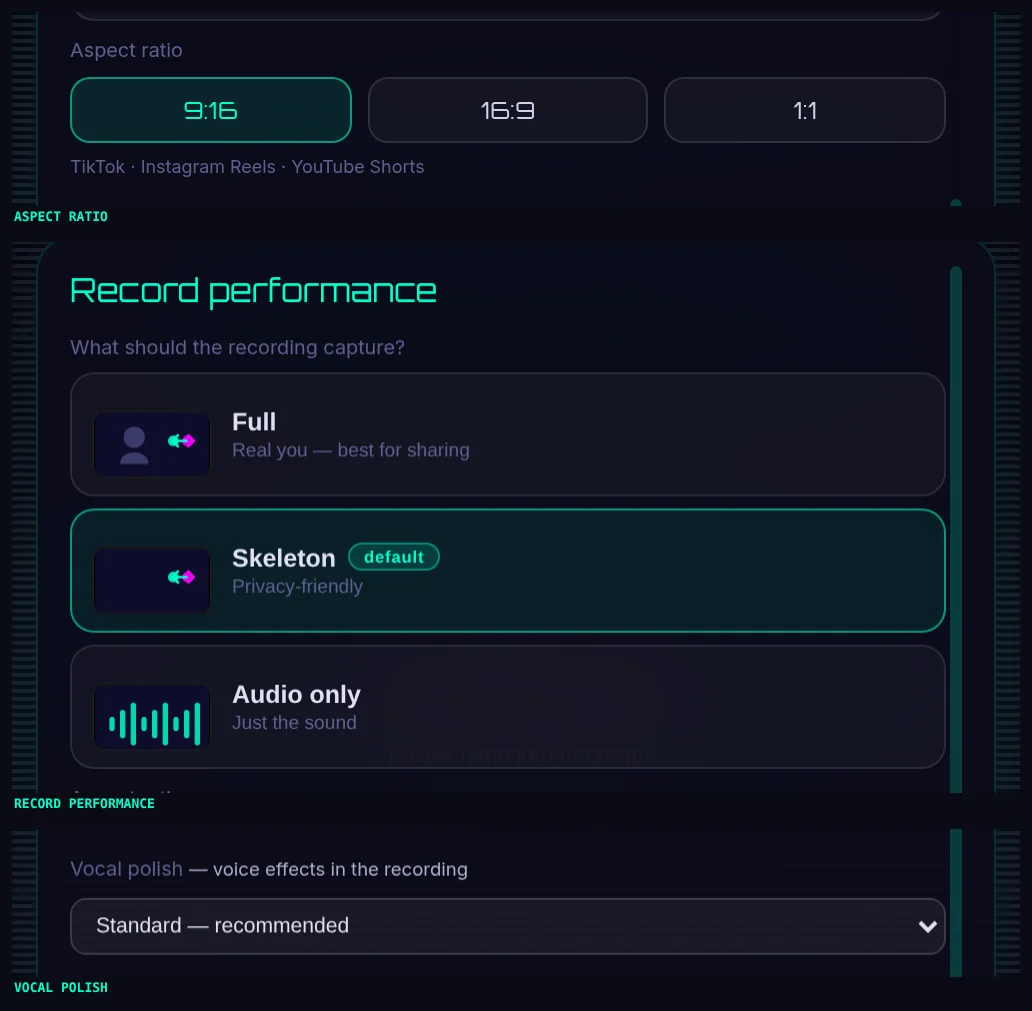
If the take is going to a phone-first place, portrait is the shape that fits, and Skeleton mode keeps you out of the picture entirely while the hands stay visible. Vocal polish is an effect on the recording only — it does not change what you hear while playing.
Aspect ratio — 9:16 (Recording panel)
Record performance — Skeleton (Recording panel — opens from ● Rec in the toolbar)
Vocal polish — Standard (Recording panel)
Settings — the complete reference
All 30 settings. Grouped the way the Settings panel groups them, so what you read here is in the order you will find it. Nothing is hidden behind Pro — the panel says so where it matters. One group, Share, holds no settings at all and says so itself; it is here because the tab is in the panel, and because two of the controls on it are the way back from a change you regret.
Harmony — what notes play
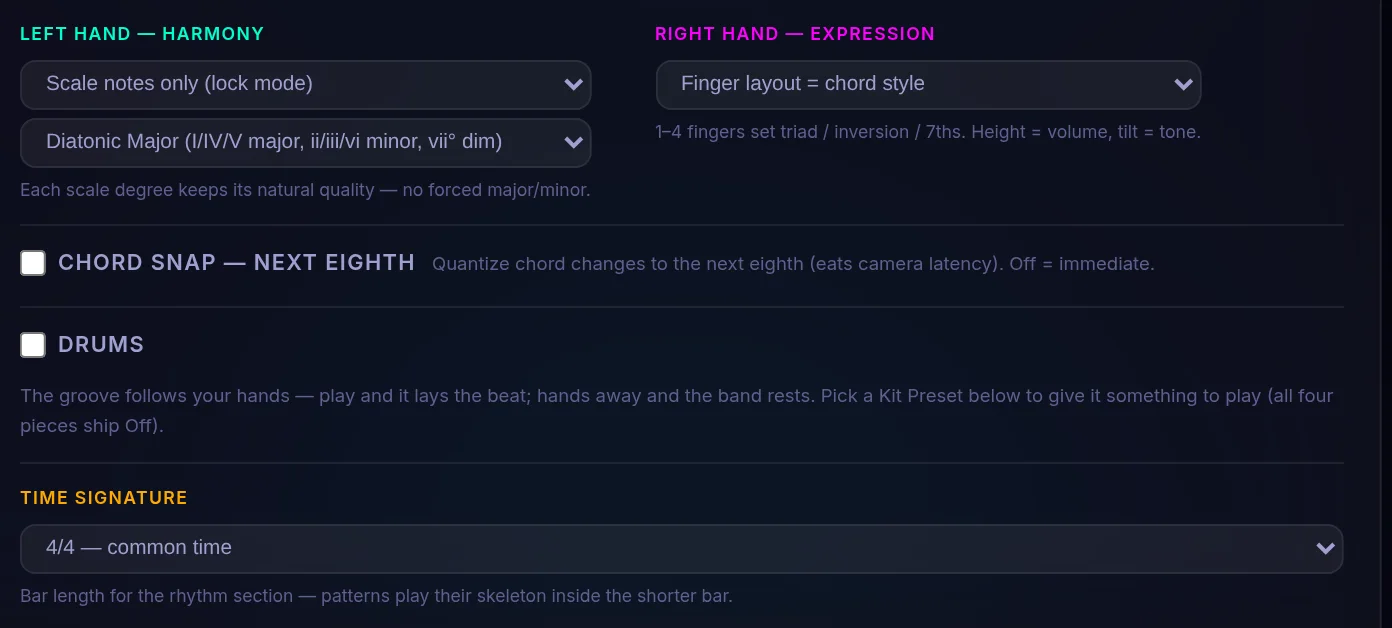
The two switches above Chord Snap are not settings and are not remembered: Left Hand — Harmony chooses whether the wrist tilt flips major ↔ minor or the mode is locked, and Right Hand — Expression decides what the right hand does with a chord style when nothing else has decided one — with a left hand in frame that is never: its HEIGHT picks the tier first, and a pinned Matrix cell before that. On the keyboard, where there is no height to read, Finger Layout takes the fingers and the lock takes a fixed style. Picking a lock reveals a second dropdown with no visible label — All Major, All Minor, or either diatonic set for the left hand; Triad, 7th, 9th, 13th and the inversions for the right. Lock one when a stray wrist movement should not change the harmony.
Chord Snap — next eighth
Settings → Harmony
Rounds every chord change to the next eighth note instead of playing it the instant your hand moves. The point is the camera: reading your fingers costs a few frames, and without snapping that delay is audible as sloppiness.
Choices: on / off
In the appQuantize chord changes to the next eighth (eats camera latency). Off = immediate.
Drums — the rhythm section (kit, bass, swing, bar length)
Settings → Harmony — the Drums and Time signature blocks, under Chord Snap
The whole band in one place: whether the drums follow your hands, what each piece plays, what the bass does, how hard the swing leans, and how long a bar is.
Choices: Drums on/off · Kit Preset: Four on the Floor / Backbeat / Tresillo (3-3-2) / Gallop · Drum Level, Tight, Delay · a pattern per piece (Kick, Snare, Hat, Clap) · Bass Volume · Bass Pattern: Drone (hold the root) / Pulse (8ths) / Tresillo (3-3-2) / Gallop / Flow (generative) · Bass Resonance, Bass Breathing · Flow knobs: Density, Chord Tones, Jumps, Feel · Swing · Time signature: 4/4 — common time / 3/4 — waltz / 2/4 — march / 1/4 — one-beat bar
In the appThe groove follows your hands — play and it lays the beat; hands away and the band rests. Pick a Kit Preset below to give it something to play (all four pieces ship Off).
Most of this block is hidden until its switch is on: the kit rows need Drums, the bass rows need Auto Bass (the ∿ button in the top toolbar — it has no row in this panel), and the four Flow knobs need Bass Pattern = Flow.
Matrix — chord cells you pin yourself
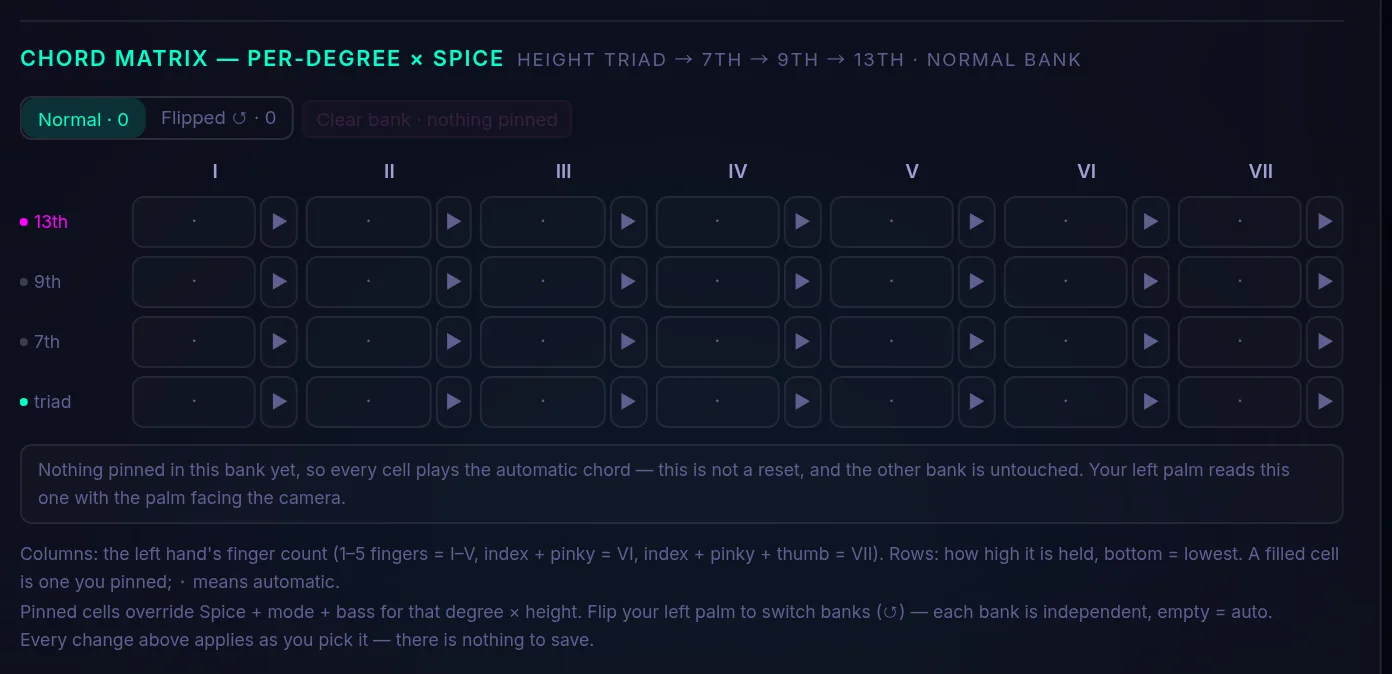
Chord Matrix — per-degree × Spice
Settings → Matrix
Pin an exact chord under a degree × height cell, for the times the automatic choice is not the one you want. Columns are your left hand's finger count; rows are how high you hold it. A pinned cell overrides Spice, mode and bass.
Choices: Two banks: Normal / Flipped ↺ · per cell: Quality (Auto (Spice) / Triad / 7th / 9th / 13th / Major Triad / Major 1st Inversion / Minor Triad / Diminished Triad / Sus2 / Sus4 / Major 7th / Dominant 7th / Root) · Mode (Auto / Major / Minor) · Bass (Auto (root) or a named note)
In the appEvery change above applies as you pick it — there is nothing to save.
There are TWO banks and you switch between them by flipping your left palm — each is independent of the other, and an empty bank means "all automatic", not "cleared".
Sound — how it sounds
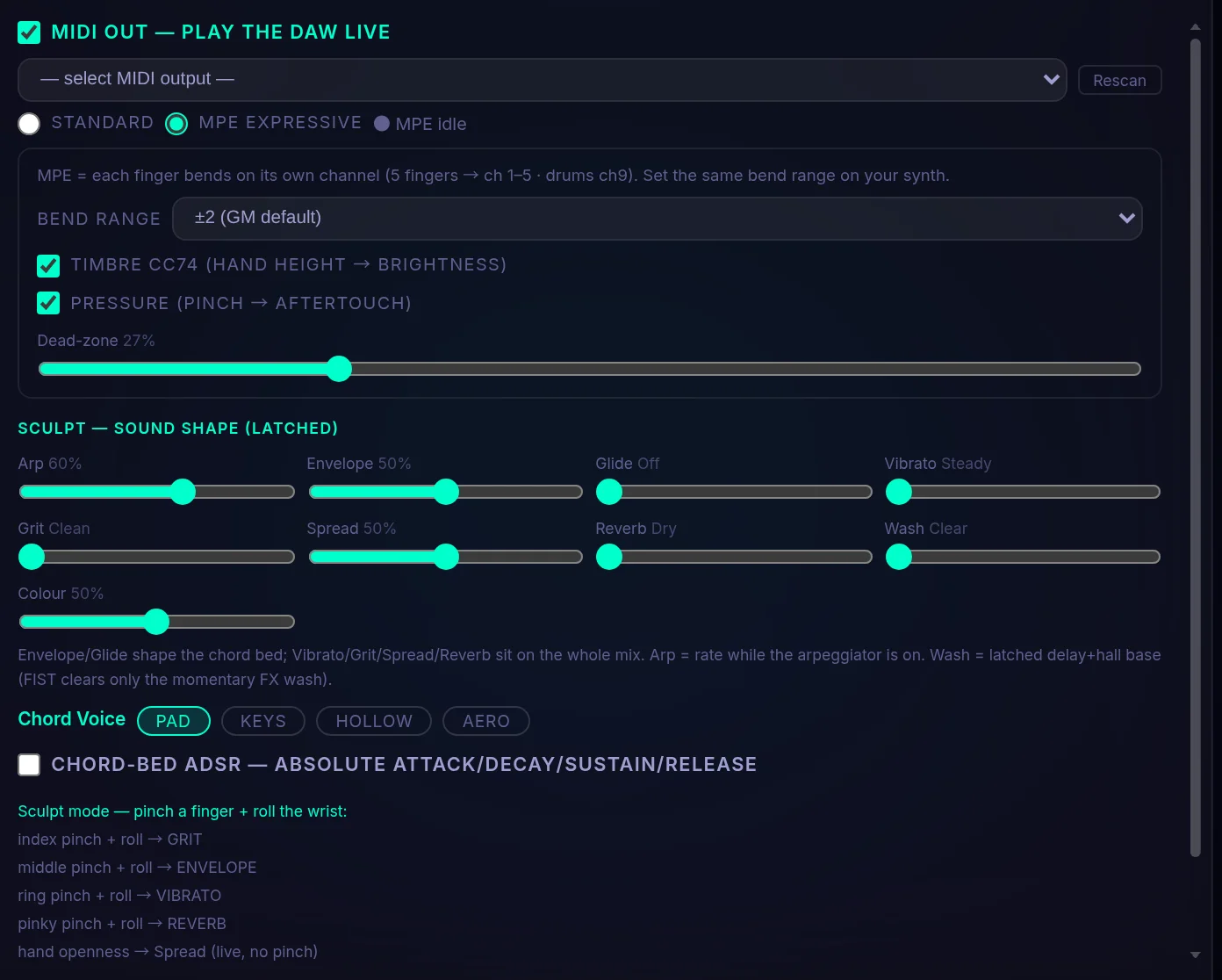
Two rows here carry controls the list above does not. Under Arpeggiator sit two dropdowns with no visible labels: its direction (Up / Down / Up-down) and its range (1 or 2 octaves). And Sculpt is playable without touching a slider at all — pinch a finger and roll the wrist, where the finger picks the parameter: index GRIT, middle ENVELOPE, ring VIBRATO, pinky REVERB, and hand openness the one that needs no pinch, SPREAD. In keyboard mode the same five are 8/9/0/− to select and ←/→ to roll.
Sculpt — Sound Shape (latched)
Settings → Sound
The sound design desk. Envelope and Glide shape the chord bed; Vibrato, Grit, Spread and Reverb sit on the whole mix. In Sculpt mode you can also reach these by pinching a finger and rolling your wrist instead of opening this panel.
Choices: Nine sliders, each with two end words: Arp (Slow → Fast) · Envelope (Pluck → Pad) · Glide (Off → Slide) · Vibrato (Steady → Wobble) · Grit (Clean → Dirty) · Spread (Mono → Wide) · Reverb (Dry → Hall) · Wash (Clear → Wash) · Colour (Dark → Bright)
In the appEnvelope/Glide shape the chord bed; Vibrato/Grit/Spread/Reverb sit on the whole mix. Arp = rate while the arpeggiator is on. Wash = latched delay+hall base (FIST clears only the momentary FX wash).
Chord-bed ADSR — absolute attack/decay/sustain/release
Settings → Sound
Replaces the single Envelope slider with the four real stages, in seconds. Turn it on when you want a specific attack or a long release rather than a feel on a Pluck-to-Pad axis.
Choices: on / off · four sliders, 0–2 seconds each
Chord Voice
Settings → Sound
The chord bed's basic timbre — the four starting points the Sculpt sliders then shape.
Choices: pad / keys / hollow / aero
Harmonizer — snap my voice to the chord
Settings → Sound
Sings your voice back in key: what you sing is pulled onto the notes of the chord that is playing, so you can hold a note against the bed without landing off it.
Choices: on / off
In the app— enable the mic, sing along, the synth sings your line in key
Needs the microphone on. Nothing is recorded or uploaded by this — it is a live effect.
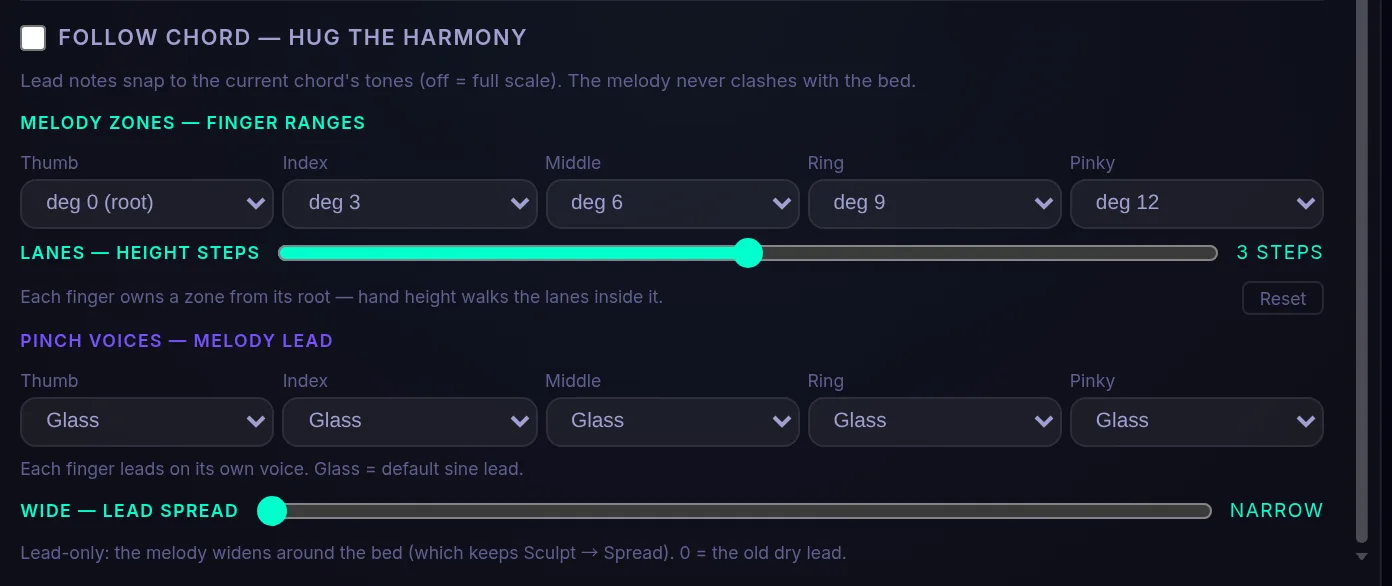
The next 5 entries — Follow Chord, Melody Zones, Lanes, WIDE, Pinch Voices — are only on screen in Melody mode.
Follow Chord — hug the harmony
Settings → Sound — melody mode
Constrains melody notes to the current chord's tones rather than the whole scale, so a lead line cannot clash with the bed.
Choices: on / off
In the appLead notes snap to the current chord's tones (off = full scale). The melody never clashes with the bed.
Melody Zones — finger ranges
Settings → Sound — melody mode
Gives each finger its own stretch of the scale. Finger count picks the register, hand height walks inside it.
Choices: one range per finger, each a scale degree from 0 (root) to 14 (top); there is a Reset button
In the appEach finger owns a zone from its root — hand height walks the lanes inside it.
Lanes — height steps
Settings → Sound — melody mode
How many notes of a zone a hand-height sweep passes through. One step means height does nothing and the finger always plays its root; five makes the sweep dense.
Choices: 1–5 steps — reads "Fixed" at 1, "Dense" at 5
In the appEach finger owns a zone from its root — hand height walks the lanes inside it.
WIDE — lead spread
Settings → Sound — melody mode
Widens the melody in stereo. The chord bed keeps its own Sculpt → Spread setting, so the two are independent.
Choices: slider 0–100%, reads "Narrow" at the bottom and "Wide" at the top
In the appLead-only: the melody widens around the bed (which keeps Sculpt → Spread). 0 = the old dry lead.
Pinch Voices — Melody Lead
Settings → Sound — melody mode
Lets each finger lead on a different instrument, so a melody played across fingers changes colour as it moves.
Choices: Glass / Warm / Pluck / Bell / Reed / Brass / Flute / Organ — one per finger
In the appEach finger leads on its own voice. Glass = default sine lead.
MIDI out — play the DAW live
Settings → Sound — the MIDI row
Streams every note, bend and drum hit to another program — a DAW, a soft synth, anything that takes MIDI. The instrument keeps playing normally at the same time.
Choices: on / off · pick an output device · Rescan
Pro, and Chrome or Edge only — Firefox and Safari have no Web MIDI, so there is no switch to find there. The device list only appears once the switch is on and Pro is active.
Standard / MPE expressive
Settings → Sound — under the MIDI device picker (Pro: MIDI out must be on first)
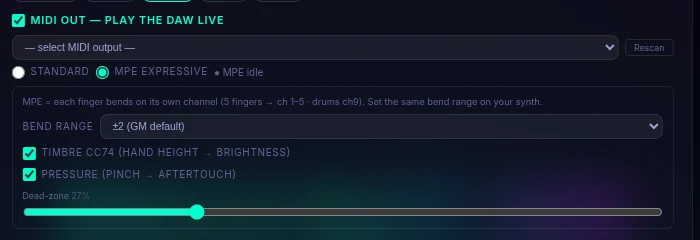
MPE gives each finger its own MIDI channel, so each note bends and presses on its own instead of the whole chord bending together. Standard is the plain one-channel wire, unchanged.
Choices: Standard / MPE expressive · Bend range: ±2 (GM default) / ±12 / ±24 / ±48 · Timbre CC74 (hand height → brightness) · Pressure (pinch → aftertouch) · Dead-zone from off to wide
In the appMPE = each finger bends on its own channel (5 fingers → ch 1–5 · drums ch9). Set the same bend range on your synth.
Pro, like everything under MIDI out: the two radios do not exist on a free account. The sub-panel only appears once MPE expressive is selected. Bend range must match your synth.
Stage — camera, visuals, keys
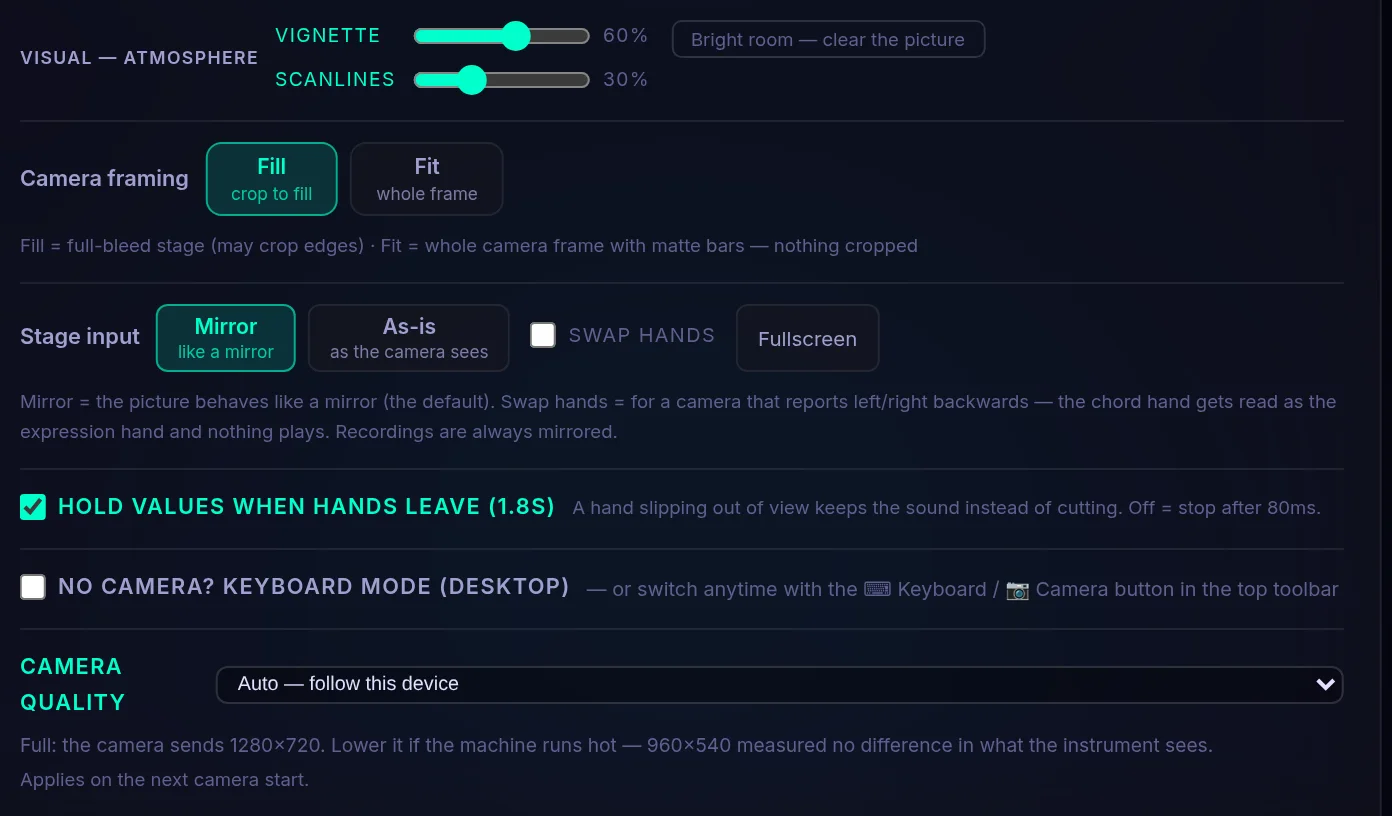
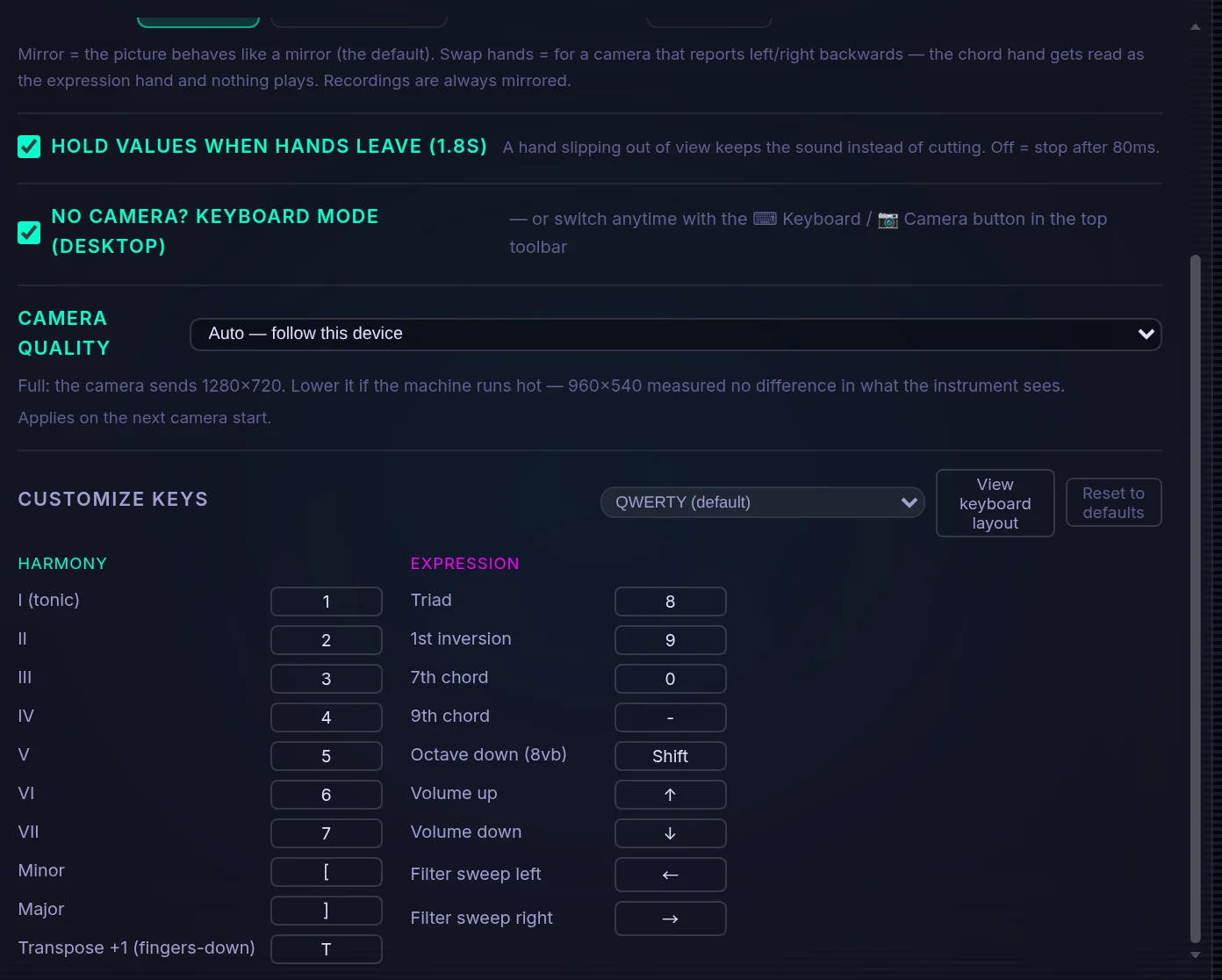
One row at the bottom of this tab is not a setting and is not remembered: Camera quality — Auto (follow this device), Full (1280×720) or Lite (960×540). It is about the device rather than the instrument, and the panel says "Applies on the next camera start." Lite is the one to reach for when the machine runs hot or the hands feel late: it measured the same detection as Full for a little over half the work.
Vignette
Settings → Stage — Visual · Atmosphere
Darkens the edges of the stage picture. Purely visual.
Choices: slider 0–100%
There is a "Bright room" button next to it that sets this and Scanlines to zero in one click.
Scanlines
Settings → Stage — Visual · Atmosphere
Draws horizontal lines over the stage picture. Purely visual.
Choices: slider 0–100%
Same "Bright room" button as Vignette.
Hold values when hands leave (1.8s)
Settings → Stage
Keeps the sound going for a moment when a hand slips out of frame, instead of cutting it dead. Useful when you move around; turn it off if you want silence to be instant.
Choices: on / off
In the appA hand slipping out of view keeps the sound instead of cutting. Off = stop after 80ms.
Camera framing
Settings → Stage — Camera framing
How the camera picture fills the stage — cropped to the edges, or the whole frame with bars.
Choices: Fill (crop to fill) / Fit (whole frame)
In the appFill = full-bleed stage (may crop edges) · Fit = whole camera frame with matte bars — nothing cropped
If your hands keep going out of frame, Fit is usually the fix — Fill crops the edges away.
Stage input
Settings → Stage — Stage input
Whether the picture is flipped to behave like a mirror. Mirror is the default and is what most people expect.
Choices: Mirror (like a mirror) / As-is (as the camera sees)
In the appMirror = the picture behaves like a mirror (the default). Swap hands = for a camera that reports left/right backwards — the chord hand gets read as the expression hand and nothing plays. Recordings are always mirrored.
Swap hands
Settings → Stage — Stage input
For a camera that reports left and right the wrong way round. Only reach for it if the chord hand is being read as the expression hand and nothing plays.
Choices: on / off
In the appMirror = the picture behaves like a mirror (the default). Swap hands = for a camera that reports left/right backwards — the chord hand gets read as the expression hand and nothing plays. Recordings are always mirrored.
Customize Keys
Settings → Stage — Customize Keys
Rebinds the no-camera keyboard. Layouts differ between countries, so the preset is a starting point — every key below it is rebindable.
Choices: Preset: QWERTY (default) / German (QWERTZ) / Custom · one row per action (I (tonic) … Filter sweep right) · Reset to defaults · View keyboard layout
Only on screen in keyboard mode, on desktop. Reserved keys and duplicates are refused when you try to use them.
Share — the link that carries the setup
This tab holds no settings. Nothing on it is remembered as a preference or comes back after a reload — it is two things that put text on your clipboard and two that throw settings away. They are written up here because the tab is there in the panel, and because the reset buttons are the only way back if you have lost track of what you changed.
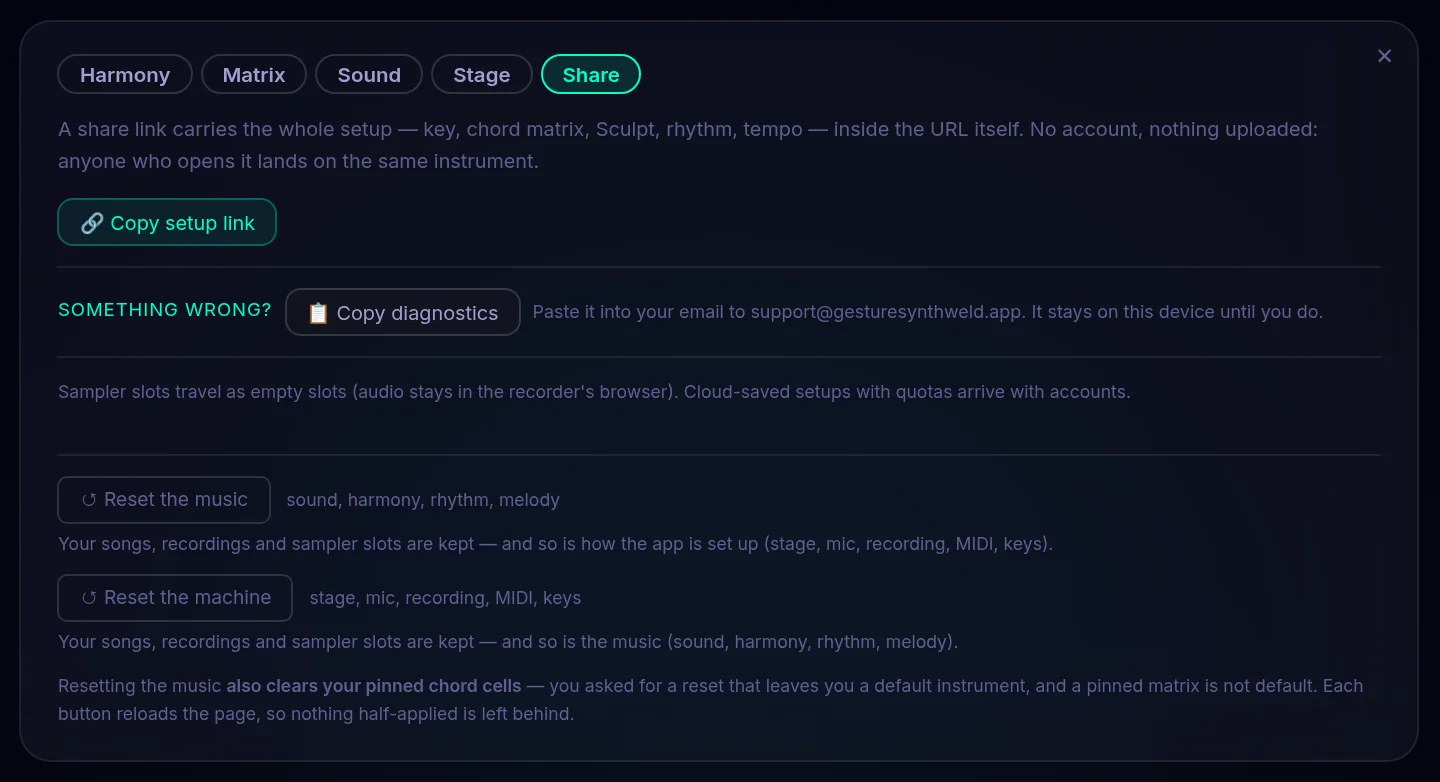
Copy setup link
Settings → Share
Puts a link on your clipboard that carries the whole setup inside the URL itself, so whoever opens it lands on the same instrument. Useful for handing a patch to someone, for keeping one in your own notes, and for reproducing a problem exactly.
In the appA share link carries the whole setup — key, chord matrix, Sculpt, rhythm, tempo — inside the URL itself. No account, nothing uploaded: anyone who opens it lands on the same instrument.
Sampler slots travel as empty slots — the audio stays in the browser it was recorded in.
Share a saved song
Settings → Share — and only once you have saved one
One Link button per saved song, copying a link to that song’s setup, so you can hand over one song instead of your whole instrument. Songs are saved from the Songs panel in the toolbar.
This whole list is absent until the first song exists — an empty shelf is not a control.
Copy diagnostics
Settings → Share — under the "Something wrong?" heading
Copies a snapshot of what the app is doing at that moment: which playing mode you are in, how the hand tracking is running and on what path, the live readout, the build, your browser and any errors this session. Nothing is uploaded — you paste it into an email to support@gesturesynthweld.app, and it stays on your machine until you do.
In the appIt stays on this device until you do.
It is the fastest way to get a camera or audio problem looked at: the snapshot carries the state that would otherwise take several emails to establish.
Reset the music
Settings — the bottom of the panel, on every tab
Puts the instrument back to how it sounds out of the box: sound, harmony, rhythm, melody. Your songs, recordings and sampler slots are not touched, and neither is how the app is wired up — stage, mic, recording, MIDI and key bindings all stay as you left them.
In the appYour songs, recordings and sampler slots are kept — and so is how the app is set up (stage, mic, recording, MIDI, keys).
This one also clears your pinned chord cells, on purpose: a reset that left your own chord matrix behind would not give you a default instrument. The Songs panel has its own separate delete if that is what you meant.
Reset the machine
Settings — the bottom of the panel, on every tab
Puts the wiring back: stage, mic, recording, MIDI, keys. The music is untouched — this is the one to reach for when the rig is wrong and the sound is fine.
In the appYour songs, recordings and sampler slots are kept — and so is the music (sound, harmony, rhythm, melody).
Both buttons ask twice. The first click arms the button and restates what is about to go; only the second one clears anything, and a Cancel sits beside it until you do. Neither has an undo, so each one reloads the page rather than leaving a half-applied state behind.
Microphone — the rig
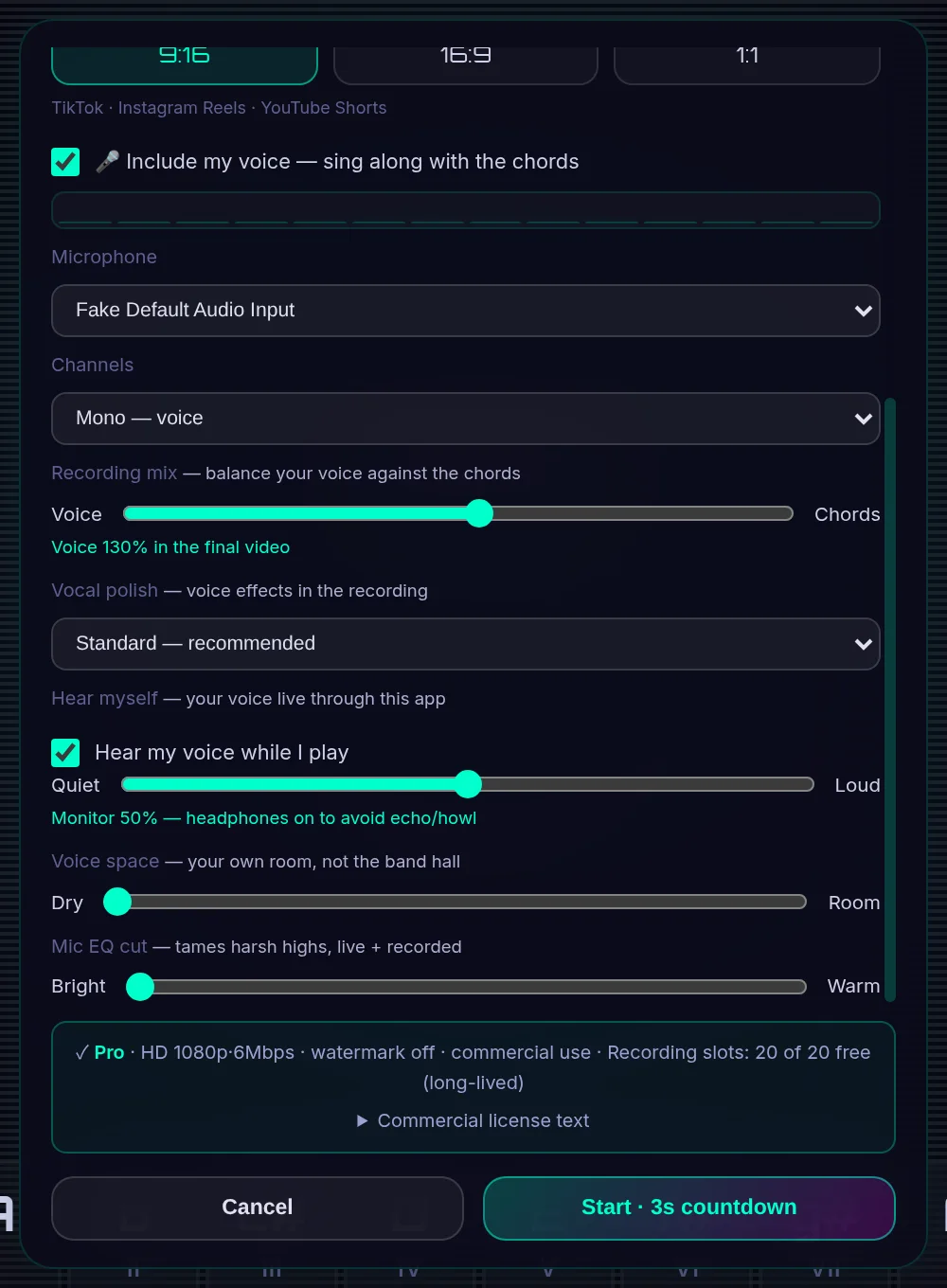
None of these five rows exists until the microphone is live, and the switch that makes it live is on the same sheet: a checkbox reading "🎤 Include my voice — sing along with the chords", greyed out until you press "🎤 Enable microphone" beside it. If the browser has blocked the mic the panel says so here, with the way back (the lock icon in the address bar → Site settings → Microphone → Allow).
Microphone
Recording panel → Microphone
Which input to use when there is more than one (a laptop mic and an audio interface, say).
Choices: your system's input devices
The list only appears when more than one device exists.
Channels
Recording panel → Microphone
How many channels to take from the input. Stereo is for an interface or a two-microphone setup.
Choices: Mono — voice / Stereo — interface/two-mic
Hear myself
Recording panel → Microphone
Plays your voice back through the app while you perform, so you can hear yourself against the chords.
Choices: on / off · level slider from Quiet to Loud
The level slider only appears once this is on. Use headphones — through speakers it will echo or howl.
Mic EQ cut
Recording panel → Microphone
Tames harsh high frequencies on the voice — live and in the recording.
Choices: slider from Bright to Warm
Voice space
Recording panel → Microphone
Puts your voice in its own room, separately from the band's hall, so it can sit in front of the mix instead of inside it.
Choices: slider from Dry to Room
Only appears once hear-myself is on.
Recording — what comes out
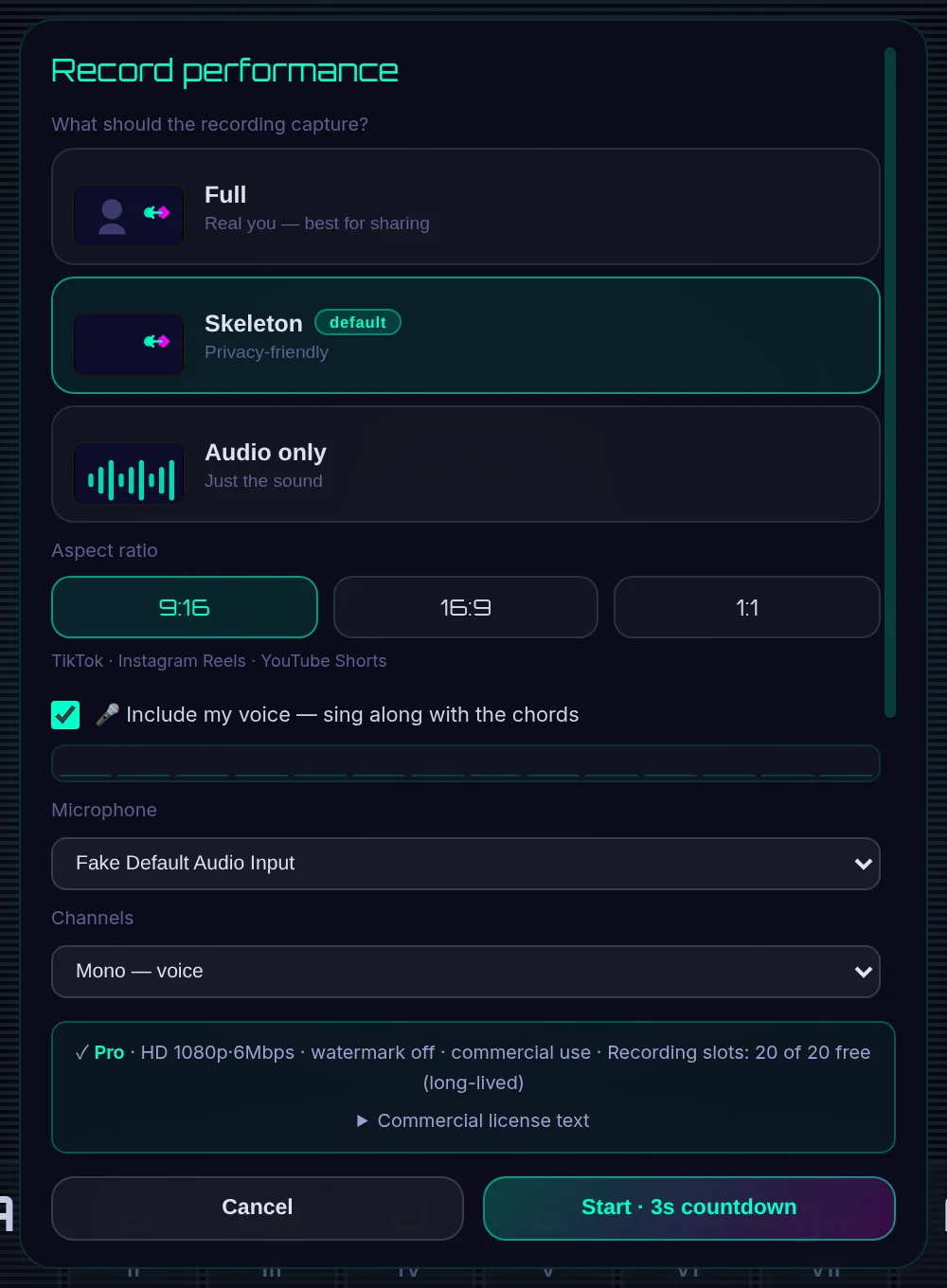
Record performance
Recording panel — opens from ● Rec in the toolbar
What the video contains: your real camera picture, just the hand skeleton, or nothing but the audio.
Choices: Full (Real you — best for sharing) / Skeleton (Privacy-friendly) / Audio only (Just the sound)
In keyboard mode there is no camera feed, so Audio only is the only choice offered. The "default" tag next to Skeleton disappears once you have chosen a mode yourself.
Aspect ratio
Recording panel
The shape of the finished video. 9:16 is for phone-first places (TikTok, Reels, Shorts), 16:9 for general sharing and YouTube, 1:1 for feeds.
Choices: 9:16 · 16:9 · 1:1
Hidden when the recording mode is Audio only — there is no picture to shape.
Recording mix
Recording panel
Balances your voice against the instrument in the finished video.
Choices: slider from Voice to Chords
Only appears once the microphone is live.
Vocal polish
Recording panel
Adds voice effects to the recording only. It does not change what you hear while playing.
Choices: Off — raw voice / Light — subtle / Standard — recommended / Strong — roomy
Only appears once the microphone is live.
The toolbar
Everything you can switch while playing is on one bar at the top. The four that matter most while your hands are busy are the mode row (left), the key, and the two toggles beside it. Each button prints its own sentence when you rest on it — these are those sentences.
- Gesture · Theremin · Piano · Melody · Sampler · Sculpt · FX
- The seven modes, left to right. The one that is live is highlighted. Switching mid-performance is what the arc does without leaving the stage — see The seven modes.
- Key (C, C♯ …)
- Transposes every chord at once. The song keeps its shape; only the key moves.
- ⟿ Arpeggiator
- Sweeps the chord’s notes one at a time instead of sounding them together — a harp rather than a pad. The right hand’s roll sets how long each note rings while it is on.
- ∿ Auto Bass
- Adds a root note two octaves below the chord. It has no row in the Settings panel; this button is the only switch.
- Hand skeleton
- Shows or hides the thin lines the tracker draws over your hands. Hide them for a cleaner recording — or if the lines distract you.
- Camera ⇄ keyboard
- Switches the whole instrument between the camera and your computer keyboard. First time on, it opens a keyboard how-to-play card.
- Songs
- The setlist: save what you are playing, load it back, switch songs live. See Songs — the setlist.
- Sampler
- The per-finger sample slots. See The sampler.
- My recordings
- Where your takes land. See My recordings.
- ● Rec
- Opens the Recording sheet — what a take captures and what shape it comes out in.
- Stop camera
- Stops the camera and the audio. Everything you have saved stays.
- Settings
- The panel this page’s reference is written from.
- ? Help
- The in-app Quick Guide — a shorter, hands-on version of this page, with a link back here.
In the appRest on any button and it repeats its own line — the toolbar and this page say the same words.
The bar is one row on a wide screen and folds into ⋯ More on a phone, which is also why the guide keeps saying "in the toolbar" rather than giving you a position.
The bar along the bottom
The status line, left to right: the chord that is sounding, its level, the mode you are in, and then the rhythm section’s own controls. The metronome half of it is not saved anywhere — see the note.
- 🎵 C
- The chord sounding right now, spelled in the key you are in.
- Vol
- How loud the instrument is, as a bar. Your hands set this too — the right hand’s height is volume.
- Gesture / Theremin / …
- The mode that is live. Same word the mode button shows.
- ⏸ band rests
- Appears when the drums and bass have stopped because your hands are out of frame. It is a statement, not a control: raise a hand and the band comes back.
- BAR 1
- Which bar of the pattern the band is on.
- BPM 120
- The tempo. Click the number to type one, or tap TAP four times in a row and it works the tempo out from your tapping.
- 4/4 · 3/4 · 5/4 · 6/8 · 7/8
- The band’s time signature — how many beats to a bar. This is the same choice the Drums setting carries, in two places.
- 1 bar … 16 bars
- How long the drum pattern is before it repeats.
- Click · Wood · Beep · Hi-hat
- What the metronome sounds like when it is on.
- ♪
- The metronome itself. It plays for you; it is never recorded.
- 25%
- The metronome’s own level, separate from the instrument’s.
The metronome — its tempo, its signature, whether it is on — is not saved between visits. A song snapshot carries it: save a song with the click running and it comes back with the song. That is also why the reset buttons do not clear it — there is nothing stored to clear.
When nothing is sounding — the screen says why
A camera instrument has a lot of ways to be quiet, and quiet looks the same however it happened. So the screen names the reason on the chord line, in its own words, and says what to do about the ones you can fix from there.
- ✊ MUTED
- left hand is a fist
- no take in that slot
- record one in the Sampler panel, or pinch a lit finger
- harmonizer: mic closed
- it sings with your voice — enable the mic to hear it
- no hands in view
- raise a hand into the frame
Only the first of these is a state you asked for — a fist is how you mute on purpose, and it is drawn quietly. The other three are faults, and the screen says so in the louder colour, because each one has something you can do about it.
Songs — the setlist
A song is the whole instrument, frozen: key, chord matrix, sound, rhythm, melody. Loading one puts every dial back where it was, without stopping the camera — which is what makes it usable mid-set.
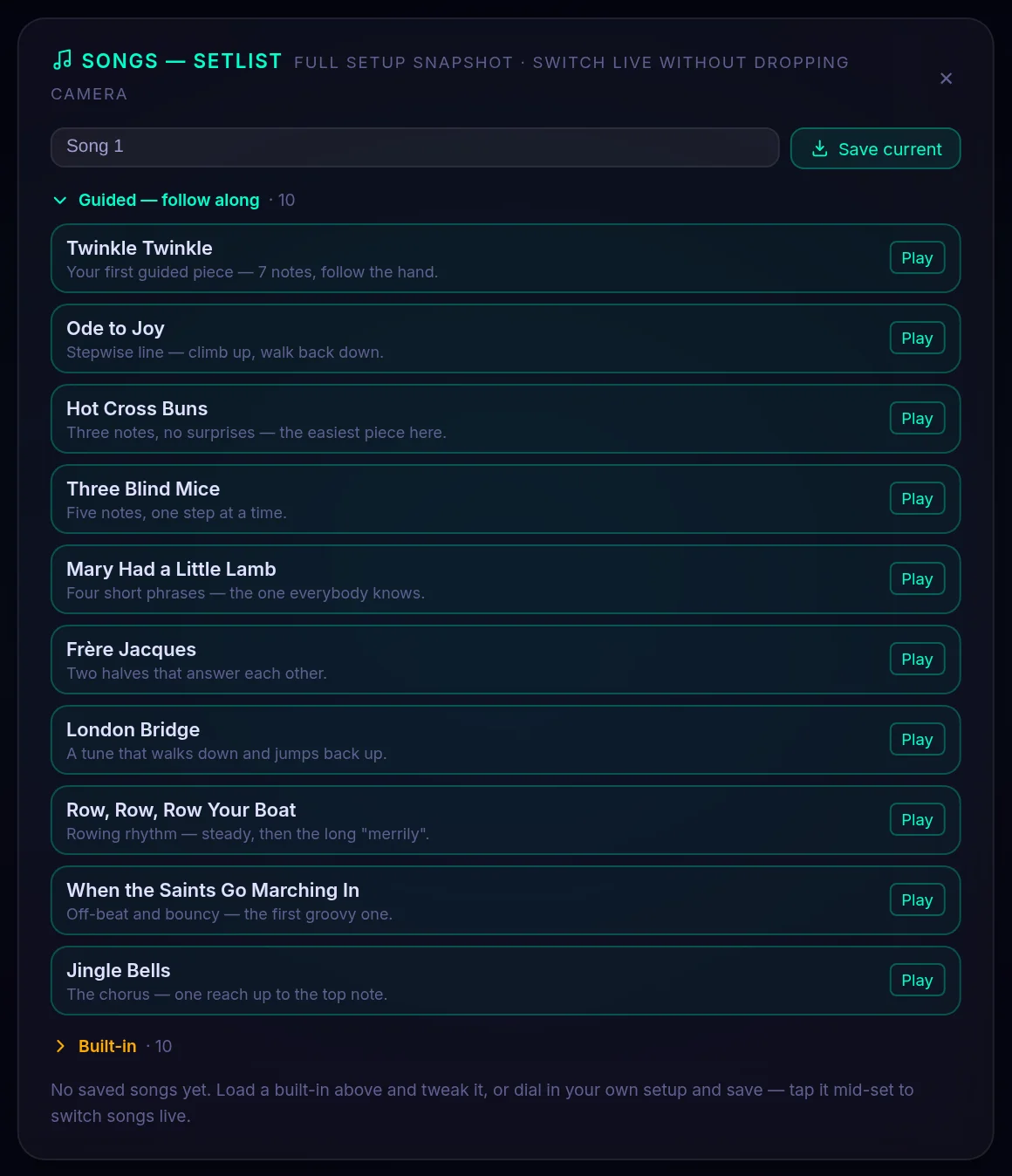
- Save current
- Names what you are playing and stores it. The name in the box is what it will be called.
- Load
- Puts that song back on the instrument. The camera keeps running.
- Revert
- Discards your tweaks and restores the song as it was saved — the way back when you have been fiddling.
- Overwrite
- Replaces a song with what you are playing now.
- Rename · Delete
- What they say. Delete is only about the song; nothing else is touched.
- Guided — follow along
- Ten pieces that teach themselves: the screen shows which note is coming and grades how you did. Two are free.
- Built-in
- Ten ready-made setups — a starting point to load, tweak and save as your own.
- Your songs
- Where Save current puts things. They are saved in this browser and they are free — and on a Pro account they also follow your account, so your setlist is there on any device you sign in on.
In the appNo saved songs yet. Load a built-in above and tweak it, or dial in your own setup and save — tap it mid-set to switch songs live.
The Songs panel has its own delete, one song at a time. That is deliberately not the same thing as the reset buttons in Settings, which throw settings away without touching a single saved song.
My recordings
Record with ● Rec, and the take lands here: a list in this browser, newest last, each row showing what it is and what you can do with it. Nothing is uploaded unless you publish it.
- ● Rec → a take
- The sheet asks what the video should contain and what shape it comes out in; then a three-second countdown, then it records until you stop it. The take appears here straight away.
- Replay
- Plays the take back without downloading it.
- Download · Download MIDI
- Saves the video or audio to your machine — and the MIDI, every voice on its own track, for opening in a DAW.
- Copy work link
- For a published take: copies the address anyone can open.
- Publish
- Uploads the take and gives you a link that stays live. This is the paid half — saving to this browser is free and always has been.
- Delete
- Removes the take. On a published one it frees the cloud slot it was using.
- · On this device only
- The take lives in this browser. Closing the page does not lose it; clearing site data, or opening the site on another device, does.
In the appEach recording auto-saves to this browser · ✓ Published = a shareable cloud copy exists
A published take has two lives: the row here and the page a link opens. The page is what someone else sees — a player with a play button and a download, and no way back into your instrument.
The sampler
Five slots, one per finger of the right hand. Put a sound in one and Sampler mode fires it when you extend that finger — the chord bed keeps running underneath, so a finger can be a drum hit, a vocal stab or a found sound.
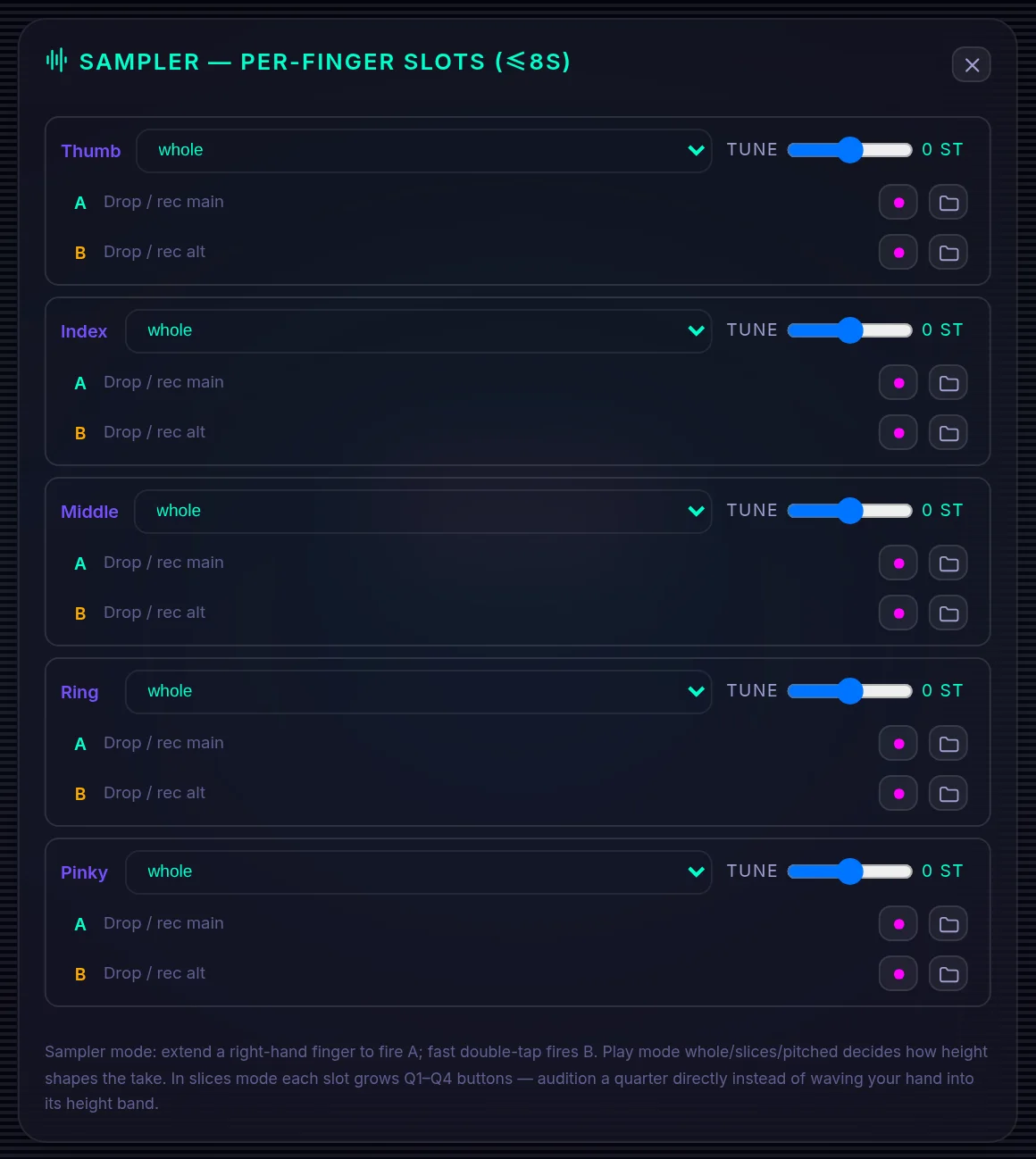
- whole · slices · pitched
- How height shapes the take when it fires. Whole plays it as recorded; slices cuts it into quarters you can reach by height; pitched plays it at a pitch that follows your hand.
- TUNE 0 ST
- Tuning, in semitones — for fitting a take to the key you are playing in.
- A — Drop / rec main
- The main take. Drop an audio file on it, or record one: it caps at eight seconds.
- B — Drop / rec alt
- A second take in the same slot, for a variation — fires on a fast double-tap instead of a single finger.
In the appSampler mode: extend a right-hand finger to fire A; fast double-tap fires B. Play mode whole/slices/pitched decides how height shapes the take. In slices mode each slot grows Q1–Q4 buttons — audition a quarter directly instead of waving your hand into its height band.
Sampler audio stays in this browser and does not travel in a share link — a link carries the slots, empty. That is the same rule as the recordings, and it is the honest one: the audio never left your machine to be shared.
About this page
The settings reference above is generated from the same list the app uses to decide what counts as a setting, so a setting cannot quietly go missing from this page — and one that no longer exists cannot linger here. That guarantee is about settings, and it is exactly as wide as that word: the buttons, badges and panels that are not settings are held to it by a second list, which every one of them has to appear on — either as a section here or with a reason it is not. Wording of the “what it does” lines is quoted from the app itself.
Wrong or unclear? Tell us — if a description here does not match what you see, that is a bug in the guide.